Start from Tally
Bring in supported accounting data, review the proposed grouping and resolve the items needing attention. Use the mapped balances as the starting point for the statements.
assureFinancials
assureFinancials by assureOffice helps Indian CAs, accountants and finance teams prepare company financial statements from supported Tally data or existing Excel financials. Bring the figures, grouping, notes and review into one online workflow, then generate the available Excel, PDF and corporate Word outputs.
Open assureFinancialsConnect through the Tally connector or use a supported export. Review ledger classifications and balances before preparing the statements.
Import supported Balance Sheet, Profit and Loss and note tables. Review the selected sheets, financial years and input units before applying the import.
Review suggested mappings, regroup balances and prepare the statements with their related note schedules.
Use the corporate Schedule III Division I workflow for supported Non-Ind AS companies, or the separate applicable non-corporate workflow.
Keep current-year and previous-year figures together. Review adjustments, disclosures and source information before finalising a version.
Download the supported financial statements and working files. Corporate financials also offer Word output; available downloads depend on the workflow and access plan.
Reuse the work you already have. Choose the starting point that fits the client, then review the figures and presentation before sharing the output.
Bring in supported accounting data, review the proposed grouping and resolve the items needing attention. Use the mapped balances as the starting point for the statements.
Select the statement sheets and correct year columns. Review notes and imported figures instead of rebuilding the same presentation manually.
Create the next financial version and select matching saved financials to pull into the comparative period. Review the preview before replacing existing previous-year information.
Reuse available financial and company information, then enter the changes for the year. The preparer decides applicability, disclosures and exemptions; the company is not assumed to be a small company.
Download a fictional company's financial statements generated with assureFinancials. Compare the Excel and PDF presentation, year columns and linked notes. These are illustrative sample outputs, not an audited report or a complete statutory disclosure checklist.
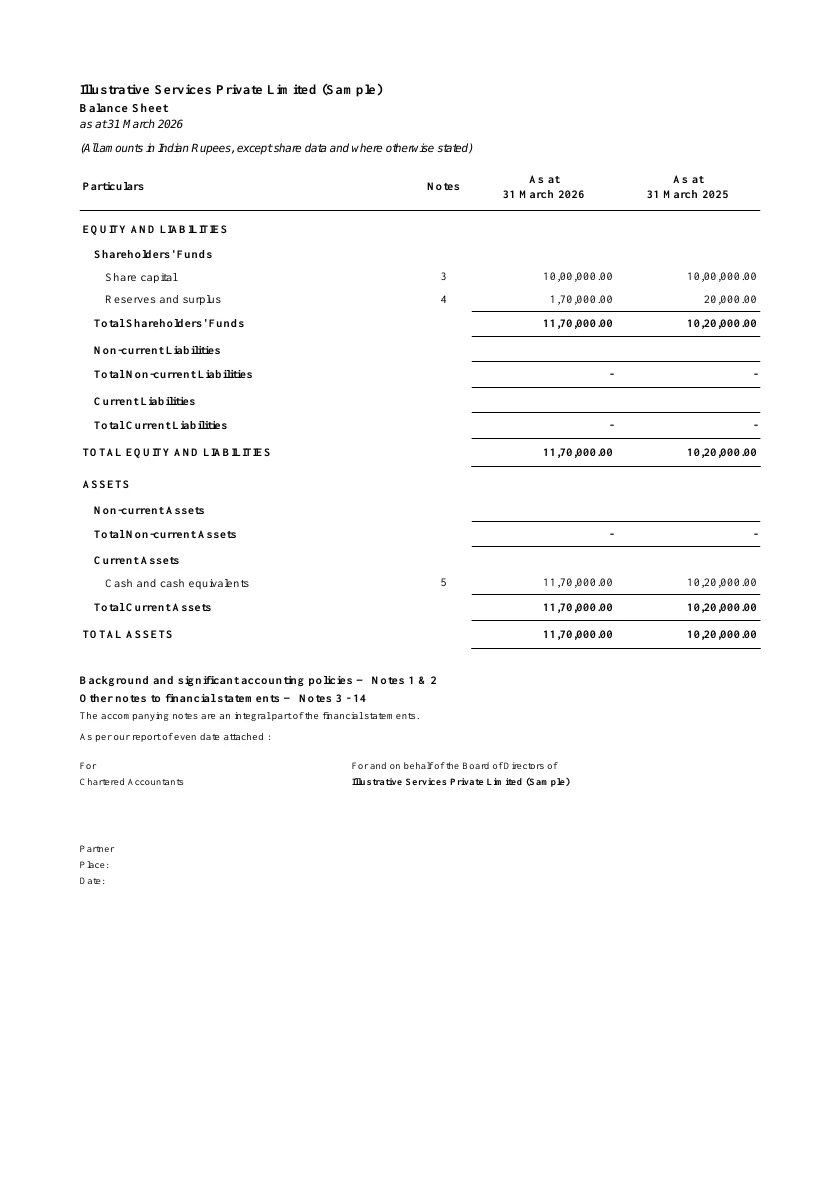
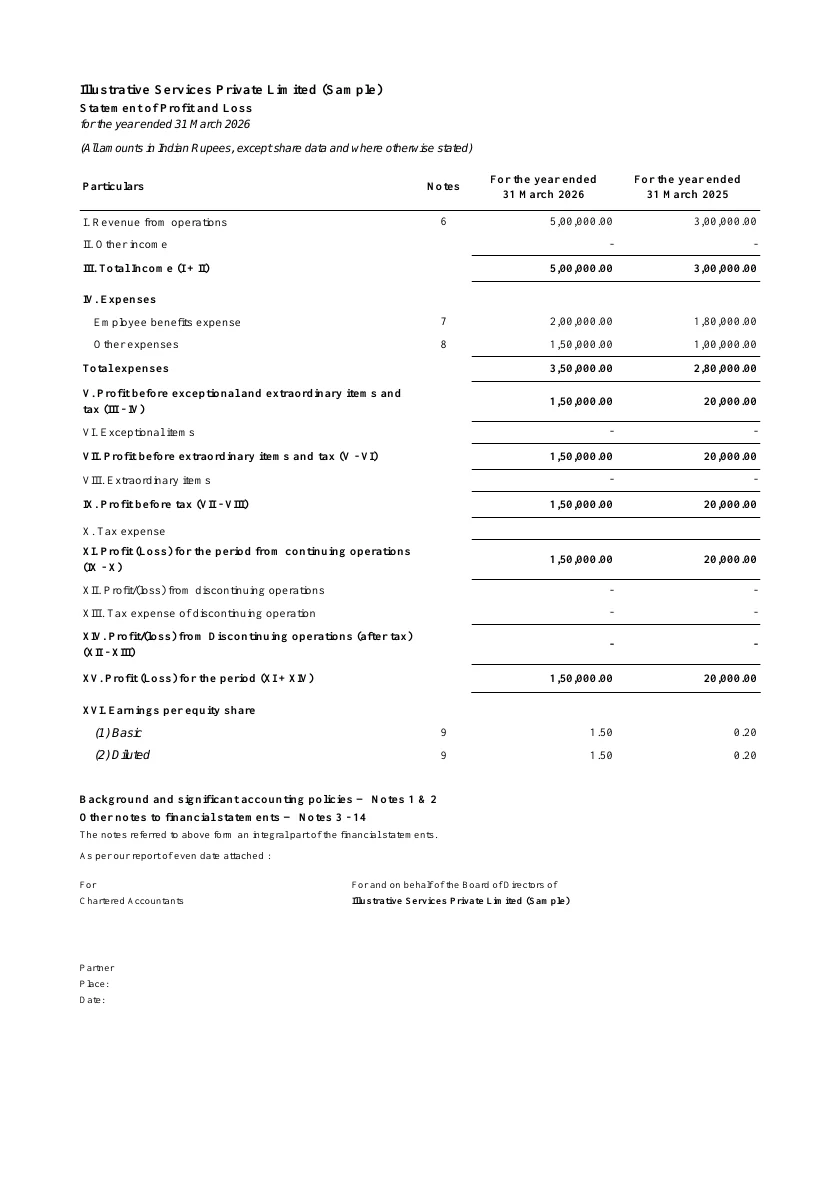
A blank Schedule 3 Balance Sheet format gives you a layout. A builder also connects source figures, grouping, comparative columns and note schedules so that you can review the financial statements together.
The supported company workflow uses Schedule III Division I for Non-Ind AS companies. Non-corporate entities have their own applicable reporting workflow. The preparer must decide the reporting framework, disclosures and applicability for each client.
Software for preparing a company Balance Sheet, Statement of Profit and Loss, Notes to Accounts and related disclosures in the applicable Schedule III presentation. Schedule 3 is a common search spelling of Schedule III.
The company workflow is for Schedule III Division I (Non-Ind AS). A company requiring a different framework must assess that requirement separately. Non-corporate entities use a separate applicable presentation; they are not treated as companies under Schedule III.
Yes, through the supported Tally connection, export and Excel-import workflows. Source layouts vary, so review detected sheets, periods, ledger mapping and values before applying them.
The corporate Excel importer provides a unit review by sheet, showing the stored value, conversion factor and INR amount. A cell storing 25 in thousands converts to INR 25,000; a cell already storing INR 25,000 but displaying 25 through Excel formatting must not be multiplied again. Final display rounding is a separate choice.
Yes. Select matching saved financials in the next financial version and review the previous-FY pull. For example, FY 2024-25 can become the comparative for FY 2025-26. This does not create current-year transactions from last year’s Profit and Loss.
Yes. The sample downloads below contain a fictional company’s Balance Sheet, Profit and Loss and linked notes generated by assureFinancials. They illustrate the output and are not a complete statutory disclosure checklist.
The client workspace supports reviewing grouping, adjustments, statement figures and available disclosures before export. Keep the supporting source and confirm the final presentation for the reporting period.
The preparer must assess the requirements and decide the applicable options. Do not infer an exemption from low turnover or limited transactions alone.
The public Quick Convertor and account workspace have their existing access limits. See current pricing for available free access, paid plans and output restrictions.